
The Heartbeat.ai for Healthcare Recruiters extension shows how many clinicians Heartbeat can reach for a job order, without leaving your ATS. It takes about 2 minutes to set up.
What you need
- A Heartbeat account (heartbeat.ai)
- Google Chrome
- A saved job order in Loxo, Zoho Recruit, Manatal or Workable (other sites work too, see "Using it on other sites" below)
What it shows you
- How many clinicians Heartbeat can reach for the job, based on specialty and location
- How many of them have a mobile number
- How many of them have a direct email
- Locked profile previews (first name, last initial, specialty and city only)
- A one-click link to open the full search in Heartbeat, already signed in
Set it up
1. Install the extension
Open the Heartbeat.ai for Healthcare Recruiters page in the Chrome Web Store and click Add to Chrome. Then click the puzzle piece icon in the Chrome toolbar and pin the Heartbeat icon so it is always visible.
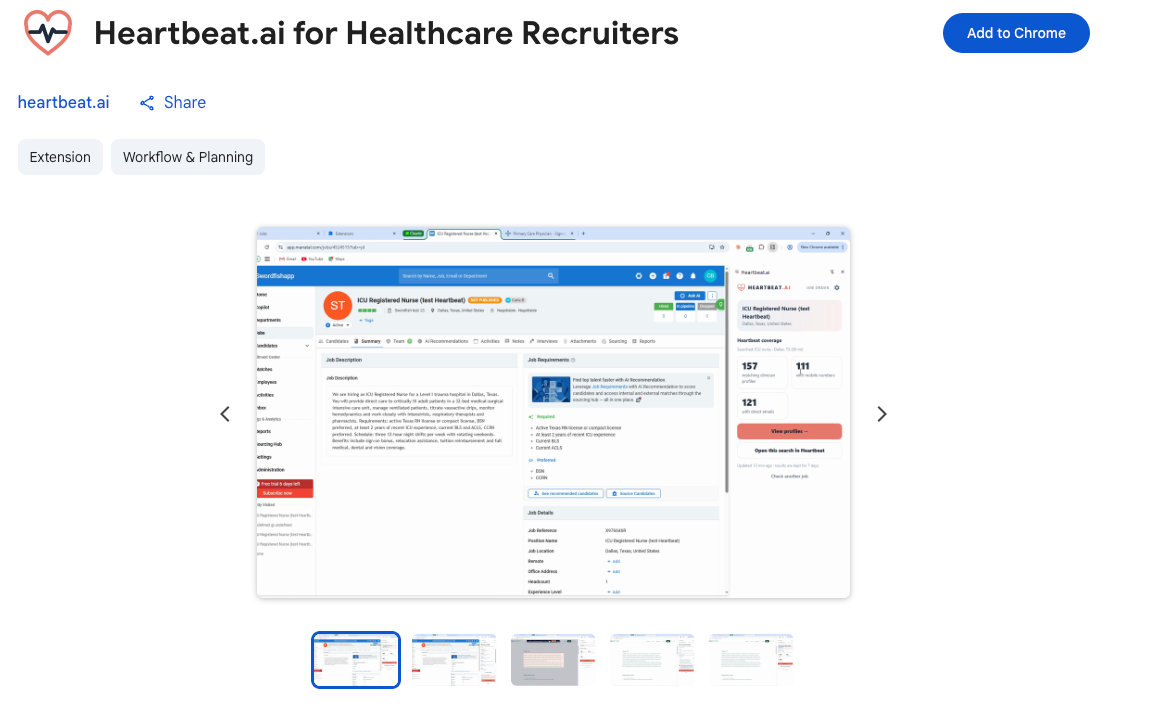
The Heartbeat.ai for Healthcare Recruiters page in the Chrome Web Store. Click Add to Chrome.
2. Sign in
Click the Heartbeat icon and sign in with Google or with your Heartbeat email and password. No account yet? Request a free account. It starts with a quick call with our team.
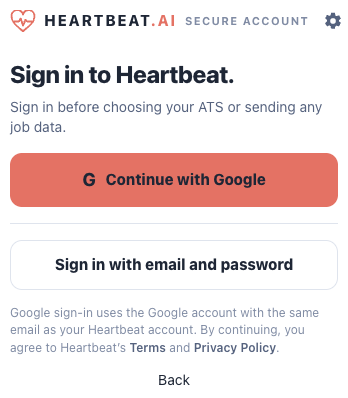
Sign in with Google or with your Heartbeat email and password.
3. Choose your ATS
Pick the ATS you use and click Continue. Chrome will ask you to allow access, so click Allow. The extension only asks for access to the ATS you choose. If your ATS is not on the list, choose Other / not listed.
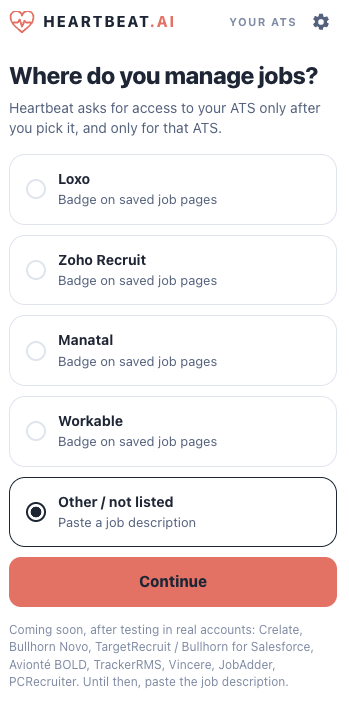
Pick your ATS and click Continue.
Use it on a job order
4. Open a saved job order
Open a saved job order in your ATS and click the Heartbeat icon in the toolbar.
5. Click Check matches
Click Check matches. The extension reads the job title, location and description and shows the number of matching clinicians, how many have a mobile number and how many have a direct email. Nothing is sent until you click Check matches.
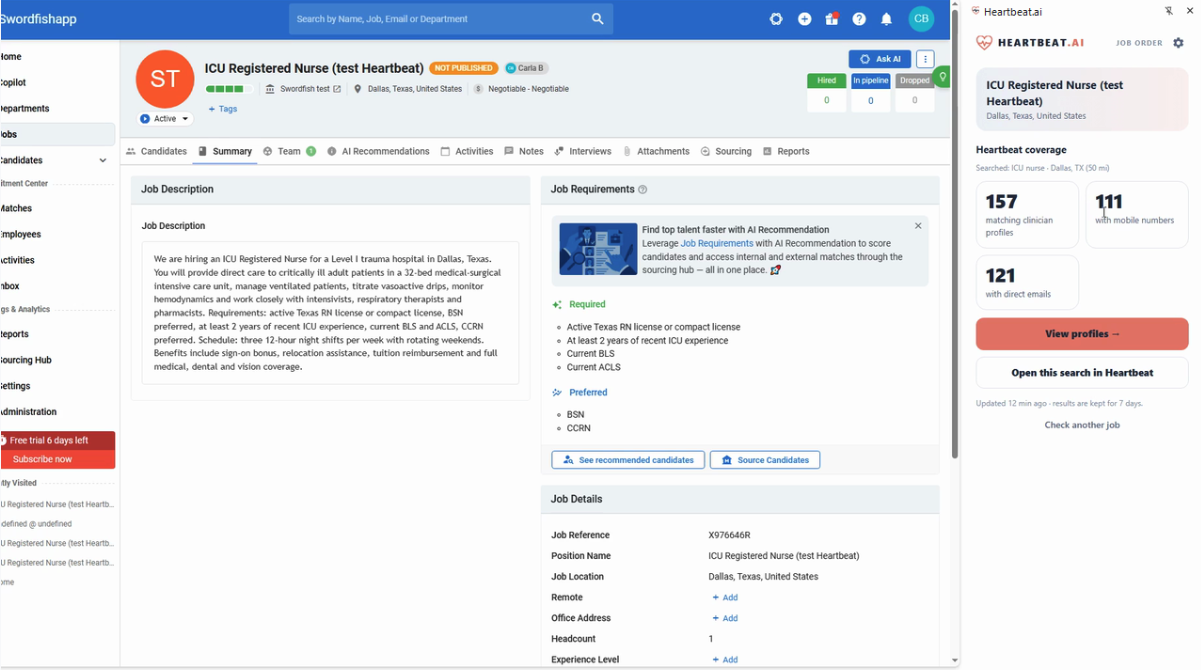
The extension panel after you click Check matches.
Watch: how to check matches (45 seconds)
6. View profiles and open Heartbeat
Click View profiles to see locked previews, then Open this search in Heartbeat to open the full search in Heartbeat, already signed in. Contact details are only added when you ask for them in Heartbeat, and they use credits.
Click View profiles to see locked previews, or Open this search in Heartbeat to see the full search.
Watch: view profiles and open your search in Heartbeat (54 seconds)
Using it on other sites
If your ATS is not on the supported list, you can still use the extension:
- Choose Other / not listed when you pick your ATS. Then paste the job title, location and job description into the panel and click Send and show match counts.
- Or select the job description text on any page, right-click and choose Find candidates with Heartbeat.
- Or right-click and choose Mark the job description, then adjust the highlighted box with Smaller or Bigger and click Use this block.
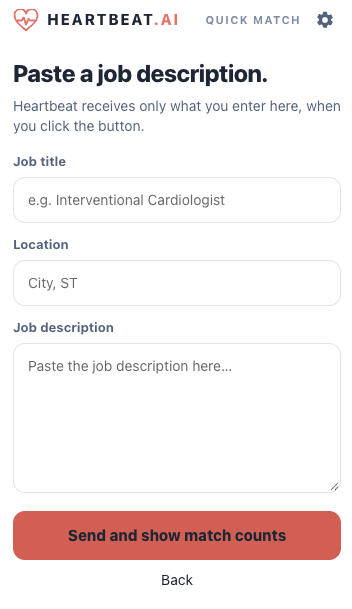
On other sites: paste the job title, location and job description, then click Send and show match counts.
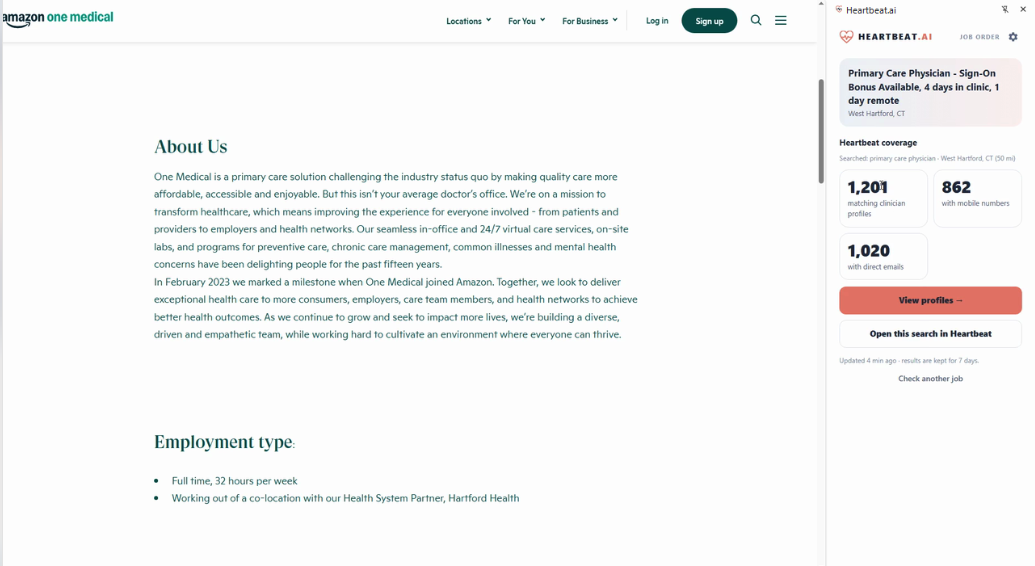
Example: results for a primary care physician job on a careers page: 1,201 matching clinician profiles, 862 with mobile numbers and 1,020 with direct emails.
Watch: use the extension on any website (1 minute 27 seconds)
Settings and check limits
Click the Heartbeat icon and open the settings page called "Your extension". It shows:
- Signed in as: the Heartbeat account you are using.
- ATS: the ATS you chose when you set up. You can change it here.
- Check limits: how many times you can click Check matches. The limit is 20 checks per hour and 100 per day. Results are kept for 7 days.
- Permissions: the sites the extension is allowed to open.
- Sign out: signs you out of the extension.
Watch: the settings page and check limits (16 seconds)
Your data
- The extension reads a job only when you click.
- It sends only the job title, location and description.
- It asks for access to your ATS only after you choose it.
Troubleshooting
- I cannot see the Heartbeat icon: click the puzzle piece icon in the Chrome toolbar and pin Heartbeat.
- The extension does not recognize my job page: make sure you are on a saved job order, not a list. Or select the job text and right-click, then choose Find candidates with Heartbeat.
- I see "Paused, try later": you have reached the check limit (20 checks per hour and 100 per day). Wait a little while and try again. You can see your limits in the extension settings.
- Sign-in does not work: sign out of the extension and sign in again.
Good to know
- The extension recognizes saved job pages in Loxo, Zoho Recruit, Manatal and Workable. Coming soon, after testing in real accounts: Crelate, Bullhorn Novo, TargetRecruit / Bullhorn for Salesforce, Avionté BOLD, TrackerRMS, Vincere, JobAdder and PCRecruiter. Until then, paste the job description.
- Need help? Email contact@heartbeat.ai.